
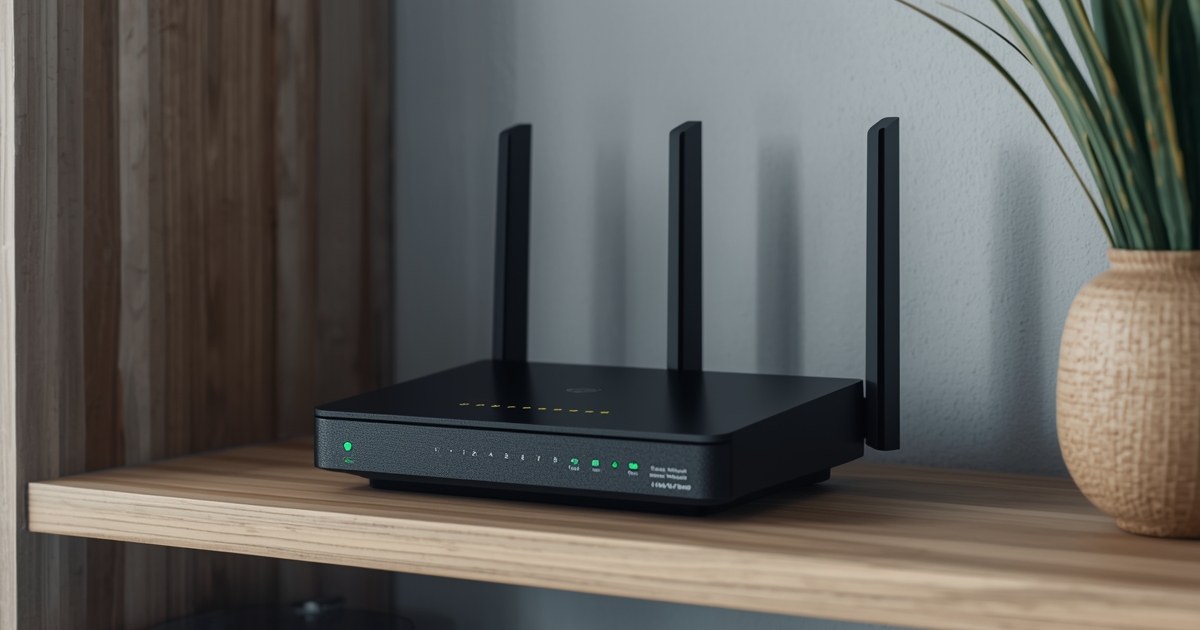
Most of the settings buried in a router’s admin page make no real difference to IPTV playback. A handful do, though, and knowing which ones saves you from randomly toggling options hoping something helps. The goal is always the same: keep the path between your router and your streaming device short, uncongested, and predictable.
Turn on Quality of Service if it exists
Many consumer routers include a QoS (Quality of Service) setting that lets you prioritize traffic to a specific device. Setting your TV box or streaming device as the top priority means other activity on the network — a phone updating apps, a laptop backing up files — does not compete for bandwidth at the exact moment a show is playing.
Use the 5GHz band, not 2.4GHz, when you can
The 2.4GHz band travels farther through walls but carries far less bandwidth and is shared by more devices in a typical home, including non-Wi-Fi gadgets. The 5GHz band is faster and less congested, and it is almost always the better choice for a streaming device sitting within normal range of the router.
Wired still beats wireless, full stop
No Wi-Fi setting fully closes the gap with a physical Ethernet connection. If your streaming device or TV has an Ethernet port and running a cable is practical, it removes an entire category of problems — interference, signal drop, competing devices — permanently. This matters most in households running several screens at once, where wireless congestion is the most common culprit.
Restart the router on a schedule, not just when something breaks
Routers accumulate small memory and connection-table issues over weeks of uptime that rarely announce themselves clearly. A router that restarts itself on a weekly schedule, or one you restart manually now and then, tends to perform more consistently than one left running for months untouched.
Check whether your connection can actually support what you are asking of it
Settings only go so far if the underlying connection is not fast enough for the number of screens and resolution you are running. The guide to internet speed requirements covers how to figure out whether your plan is the bottleneck before you spend more time tuning router settings that will not fix a bandwidth shortfall. If buffering persists after trying all of the above, the full buffering checklist covers the remaining causes outside the router itself.